

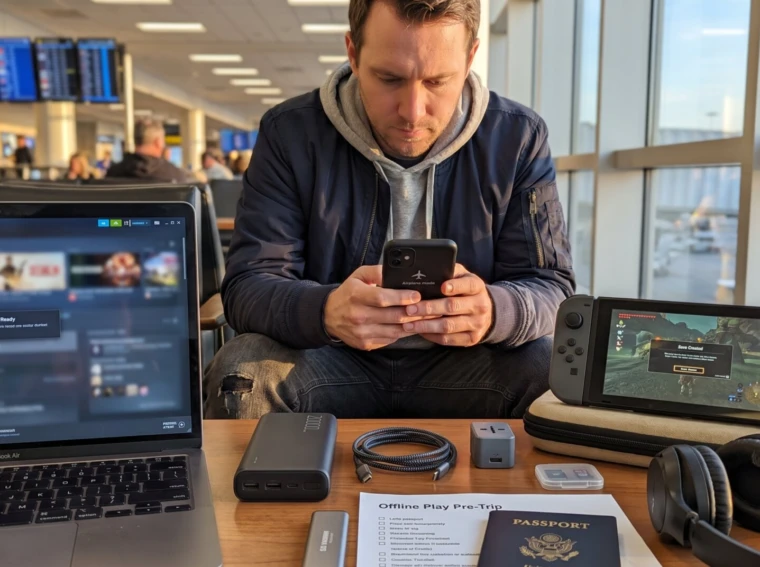
How to prepare games for offline play before a trip matters more every year as flights, trains, and remote stays often lack reliable internet. This guide gives a tight, practical checklist that players can run through in one sitting. It opens with why offline readiness matters, then moves into a universal pre-trip checklist and platform-specific steps for PC, consoles, and mobile. Each block begins with the core action, then explains why it matters and how to test it. The reader can use these steps to avoid licensing errors, broken saves, and dead batteries when they arrive.
Key Takeaways
- Preparing games for offline play before a trip ensures uninterrupted entertainment without relying on Wi‑Fi or mobile data.
- Always update and fully install games, then launch them once online to validate licenses and create local saves before traveling.
- Verify that save files are stored locally rather than solely in the cloud to avoid losing progress during offline gameplay.
- For PC users, sign into launchers like Steam and use offline mode after updating to prevent access issues mid-trip.
- Console owners should set their device as the primary console and download all game updates to enable offline play of digital titles.
- Mobile gamers need to open each app while online to download necessary assets and test games in airplane mode to confirm offline readiness.
Why Offline-Ready Games Matter For Trips
Fact first: offline-ready games let a traveler play without Wi‑Fi or mobile data and reduce the chance of being locked out by license checks. That matters on planes, in hotel rooms with throttled Wi‑Fi, or when roaming internationally. A concrete example: a player who flew from New York to Reykjavík found their Steam-only activation blocked because they hadn’t verified credentials before takeoff, a thirty‑minute, stress-filled fix in an airport lounge.
Offline play also saves money. Savvy travelers avoid expensive in-flight Wi‑Fi and the battery drain caused by constant network polling. For single-player campaigns, offline mode eliminates multiplayer matchmaking delays and server-side interruptions, turning travel hours into uninterrupted progress.
Practical warning: not every title can run offline. Games with persistent multiplayer worlds, subscription checks, or timed DRM may still require periodic validations. Before departure, confirm a game’s offline capability by launching it once while online and then testing it in airplane or disconnected mode. This short test prevents the common mistake of assuming an installed game equals usable play.
Universal Pre-Trip Checklist: Updates, Saves, Storage, And Power
Action first: update, launch, verify saves, free space, and prepare power. Those five steps prevent most travel failures.
Update and install fully. Download patches, DLC, and any required runtime packages while on a stable connection. Installers sometimes require extra components (DirectX, redistributables) that are easy to miss. Launch every game once online. Doing so lets the launcher validate licenses, create initial local saves, and finish background setup.
Verify where saves live. Check game settings to confirm local save files exist and are not cloud-only. If a title uses cloud-first saves, enable “save locally” options or copy save files to a known folder. Confirm available storage: leave 10–20% free on your device for game updates and temporary caches. Low storage can cause corrupted installs. For practical next steps, the pillar guide offers additional detail.
Power and peripherals: charge devices to 100%, pack a rated power bank, and bring charging cables and any adapters. If using a handheld or phone, pick a power bank that supports at least 20,000 mAh or PD output to extend multiple sessions. For hard lessons learned: one writer wasted an overnight ferry trip because they trusted a 10,000 mAh pack that couldn’t fast-charge a handheld with a 45W draw.
Quick test: enable airplane mode and boot each game for five minutes to confirm it loads and a save can be created or continued.
Platform-Specific Steps To Make Games Work Offline
Core insight: each platform has unique checks, handle them before you leave. The three platform subsections below explain the exact toggles and tests to run so you won’t be blocked mid-trip.
PC/Laptop: Steam, Epic, DRM, And Local Files
Action first: validate launcher credentials, download full installs, and switch to offline mode after a test. On Steam, sign in while online, check “Remember me,” update games, and launch each title so Steam stores credentials. Then use Steam’s Offline Mode to confirm each game runs without internet. Avoid selecting options like “Don’t save account credentials on this computer” because they prevent offline sign-in.
For Epic and other launchers, ensure games are fully installed and any required runtime (Visual C++) is present. Some DRM systems require periodic server checks: find the game’s support page and note how often validation runs. DRM-free purchases from stores like GOG are the simplest, they typically run without any online checks.
Tip: copy local save folders to an external SSD or cloud backup before travel. On Windows, common save locations are in %APPDATA% or Documents: on Linux, check ~/.local/share. If a laptop may be used by others, create a local user account and keep credentials cached. For technical how‑to details on making Steam’s offline mode work, consult the specific guide on the site that explains invisible mode and offline play.
Consoles: Switch, PlayStation, Xbox — Modes, Licenses, And Downloads
Action first: set the console as the account’s primary device, download full games and updates, and verify licenses. On PlayStation, enable Console Sharing and Offline Play on the primary device so purchased games run without the account being signed in. On Xbox, set the unit as “My home Xbox” to let digital purchases play offline. On Nintendo Switch, ensure the console is registered as the primary console for the Nintendo account used to buy games.
Download any game updates and launch each title once while online: this step finishes installation tasks and saves license status locally. Keep physical cartridges or discs handy as backups for Switch and PlayStation, cartridges rarely require online checks.
Practical warning: console systems sometimes perform background license rechecks after long offline periods. If a trip will last weeks, plan a brief online session mid-trip or before a long offline stretch. For protectors and transport, pair these steps with hardware protection advice from the site’s guide on keeping handhelds safe while traveling to avoid damage in transit.
Mobile Devices: Offline Mode, App Data, And Airplane-Ready Settings
Action first: open each app while connected, allow full setup and asset download, then test in airplane mode. Many mobile games download critical assets on first run: opening the game once saves those files locally. For apps that support an explicit offline mode, enable it in settings. If a game offers an option to store maps or levels for offline use, download them while on Wi‑Fi.
Check app permissions and storage: grant local storage access and ensure cached data is not set to clear automatically. On Android, pin important app files with a file manager: on iOS, confirm the app keeps data when Background App Refresh is off. Test by toggling airplane mode and restarting the device, then launching the game and loading a save.
Practical tip: carry a small microSD card for Android devices and move large asset packs there if the device supports it. If a mobile controller is part of the setup, pair it and test input latency before leaving. For readers choosing hardware and accessories, the site also covers travel power banks and controllers in related guides.
Conclusion
The simplest, most reliable offline setup is: update and install fully, launch once online to validate and create local saves, confirm storage and power, then test in airplane mode. Following these steps reduces surprises and keeps travel time playable and calm. Gamers who adopt this checklist will spend less time troubleshooting and more time enjoying long stretches of uninterrupted play.