

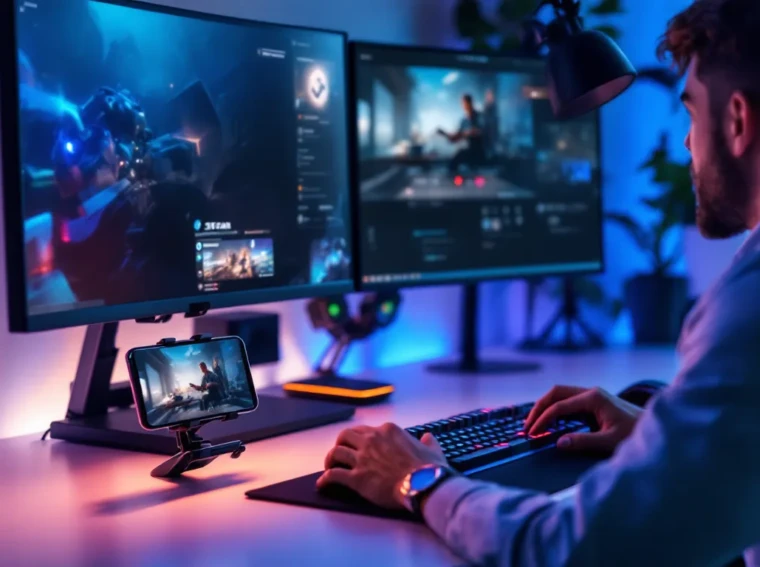
The short answer? Yes, but not the way you might think. Playing Steam games on your phone isn’t about downloading them directly from the App Store: instead, it relies on Steam Remote Play, a streaming technology that lets you beam games from your PC to your mobile device. For mobile gamers tired of the same lightweight titles, this opens up access to your entire Steam library anywhere with an internet connection. Whether you’re curious about how to play Steam games on your phone during a commute or want to know if it’s actually worth the setup, this guide covers everything you need to know in 2026.
Key Takeaways
- You can play Steam games on your phone through Steam Remote Play, a free streaming technology that transmits gameplay from your PC to your mobile device over WiFi or the internet.
- Steam Remote Play works best for turn-based strategy games, indie titles, and slower-paced experiences; avoid competitive shooters and rhythm games where input latency negatively impacts gameplay.
- Setting up Steam Remote Play requires enabling the feature on your PC, downloading the Steam Link app on your phone, and pairing both devices via the same Steam account.
- A stable local WiFi connection delivers minimal input delay (under 50ms), while remote internet streaming introduces 100-200ms latency depending on distance and connection quality.
- If you’re serious about portable Steam gaming, consider upgrading from your phone to an iPad for a larger screen, or investing in a Steam Deck for native performance without streaming.
What Is Steam Remote Play and How Does It Work?
Steam Remote Play is Valve’s built-in streaming solution that transmits gameplay from your PC to another device over your local network or the internet. Think of it like remote desktop software, but optimized for gaming. Your computer does all the heavy lifting, running the game, rendering graphics, processing physics, while your phone acts as a display and input device. The game streams to your phone in real time, and your inputs (controller taps, button presses) send signals back to your PC almost instantly.
The magic happens through Valve’s low-latency streaming codec, which prioritizes responsiveness over pristine visuals. For turn-based games or slower-paced titles, this works flawlessly. For competitive shooters? It depends on your network stability and latency.
Steam Remote Play is free if you own the games on Steam. Valve doesn’t charge an extra subscription, you’re just using their existing infrastructure.
Key Features of Steam Remote Play
Hardware Streaming: Your PC handles all game execution. The phone merely displays and controls, no game installation needed on your device.
Cross-Network Support: Works over local WiFi for near-zero latency, or across the internet (with slightly higher latency but still playable).
Controller Flexibility: Pair your own controller (PS5, Xbox, generic Bluetooth) or use touch controls mapped to your screen.
Pause and Resume: Suspend your game on PC and jump back in on your phone without issues.
Multi-Device Support: Stream to phones, tablets, or even other PCs. Your library follows you.
One underrated feature: you can play games that never released on mobile, period. Elden Ring, Baldur’s Gate 3, Cyberpunk 2077, all accessible on your phone via Remote Play, even though they’re PC-exclusive titles.
System Requirements for Remote Play
For Your PC:
- Windows or macOS with Steam installed
- A stable internet connection (for remote play) or local WiFi (for same-network streaming)
- GPU capable of encoding video (most modern GPUs handle this, but ancient Intel iGPUs might struggle)
- Minimum 5 Mbps upload speed recommended for remote streaming
For Your Phone:
- iOS 14+ (iPhone, iPad) or Android 7.0+
- The Steam Link app (free, available on both App Stores)
- Bluetooth support for controller pairing (optional, but strongly recommended)
- 2GB+ RAM (though 3GB+ is ideal for stability)
Network matters more than raw phone specs. A budget Android with good WiFi beats a flagship on poor connectivity every time.
Playing Steam Games Natively on Mobile: What You Need to Know
Before diving into Remote Play, let’s address the elephant in the room: native Steam games for mobile don’t exist yet in the traditional sense. Valve hasn’t ported its full library to iOS or Android. But, some Steam games do have separate mobile versions (like Dota 2 has Dota Underlords, or Counter-Strike has Counter-Strike Mobile variants), but these are distinct titles, not the same game.
There’s also Proton and Wine-based wrappers that theoretically allow Windows games to run on Linux, and by extension some can run on Android through tools like ExaGear or Termux, but these are niche solutions requiring technical knowledge and don’t cover most AAA titles.
The reality: if you want to play the actual Steam game (the full version) on your phone, Remote Play is your answer. Native installation isn’t happening for the vast majority of games.
But, the landscape is shifting. Cloud gaming services are starting to change what’s possible. Services like NVIDIA GeForce Now actually let you stream Steam games from the cloud rather than your own PC, which has some advantages for mobility. But that’s a different beast entirely from native mobile gaming.
The bottom line for 2026: Remote Play remains the most practical and reliable way to play your Steam library on mobile. It’s not perfect, but it works, and Valve has been quietly improving it.
Steam Deck and Mobile Alternatives
Before you assume your phone is your only option, consider the Steam Deck. This portable handheld runs SteamOS and plays your Steam library natively, no streaming, no latency, just direct gaming. It’s not a phone, but it’s arguably the best way to play Steam games portably if you’re serious about it. Prices start around $229 for the base model, and the newer Steam Deck OLED ($549) offers superior screen quality.
The trade-off: the Steam Deck is bulkier than a phone. You’re carrying an additional device. For casual mobile play, a phone with Remote Play makes more sense. For dedicated portable gaming sessions, the Steam Deck wins.
Other alternatives worth mentioning:
ASUS ROG Ally and MSI Claw are Windows-based handhelds that also play Steam natively. Both have larger screens than Steam Deck but worse battery life and higher price tags.
iPad + Remote Play is a dark horse option. The larger screen makes Remote Play noticeably more enjoyable than phone-sized displays. If you already own an iPad, Remote Play on it is worth trying before sinking money into a dedicated gaming device.
For reading on how you need to evaluate gaming devices, device choice depends on your priorities: pure portability favors phones, dedicated gaming sessions favor handhelds like Steam Deck, and screen size matters more than most realize when streaming.
Setting Up Steam Remote Play on Your Phone
The setup process is straightforward, but there are a few gotchas worth knowing upfront.
Download and Installation
Step 1: On your PC, open Steam and navigate to Settings > Remote Play. Enable “Allow Steam Remote Play.” This flips the switch on your PC.
Step 2: Sign in to the same Steam account you use on your PC. This is critical. Remote Play is account-locked: you can’t stream from someone else’s library.
Step 3: Download the Steam Link app on your phone from the App Store (iOS) or Google Play (Android). It’s free and about 150-200MB.
Step 4: Open Steam Link and sign in with your Steam account. The app will automatically detect your PC on the network if you’re on the same WiFi. If streaming over the internet, you’ll need to manually enter your PC’s details or pair via the PIN method.
The first time you launch, Steam Link pairs automatically if your PC is on the same network. If not, you’ll get a PIN on your PC to enter into the app, a simple security handshake.
Pairing Your Phone With Your PC
Same Network (Local WiFi):
- PC and phone on the same 2.4GHz or 5GHz network
- Launch Steam Link
- Your PC appears automatically
- Tap it and confirm the pairing
- Done in 10 seconds
Different Networks (Remote Play):
- More complex but possible
- Both devices must be signed into the same Steam account
- PC must remain powered on
- Internet bandwidth becomes the limiting factor
- First pairing requires PIN confirmation on PC, then Steam Link remembers the connection
Pro tip: If pairing fails, restart both the Steam client on your PC and the Steam Link app. Network hiccups sometimes need a reset.
Configuring Controller and Input Settings
You have two input options: On-screen touch controls or a physical controller. Touch controls work but are clunky for anything beyond menu navigation. A controller is almost mandatory for actual gameplay.
Controller Setup:
- Pair your Bluetooth controller to your phone (PS5, Xbox, generic 8BitDo, etc.)
- Launch Steam Link and start a game
- Steam Link detects the controller automatically
- Button mapping appears on-screen: most games auto-detect your controller type
- If mapping is wrong, manually adjust in Controller Settings within Steam Link
Recommended Controllers:
- Xbox Controller or PS5 Controller: Best compatibility. Steam Link recognizes them immediately.
- 8BitDo Pro 2: Excellent third-party option with excellent build quality.
- Backbone One: iPhone-specific clip controller that pairs via Lightning/USB-C: premium option.
- Budget Alternatives: Any Bluetooth gamepad works, but you may need to manually remap buttons.
Button lag is minimal if your network is stable. Local WiFi? Under 50ms of input delay, which is imperceptible. Remote play over internet? Expect 100-200ms depending on distance and connection. Playable for strategy games, rough for competitive shooters.
Custom button layouts can be saved in Steam Link if you want different mappings for different games, though most modern Steam titles handle auto-detection fine.
Best Steam Games to Play on Mobile
Not every Steam game is suited for phone play. Some games are designed around assumptions that don’t hold on mobile (tiny screens, touch controls, latency). Others shine on mobile. Here’s what actually works.
Lightweight Indie Titles
These are your safest bets, low system requirements, minimal latency requirements, small file sizes.
Hollow Knight (2017): Metroidvania perfection. Tight controls, beautiful hand-drawn art, and 20+ hours of gameplay. The small screen doesn’t hurt exploration or combat. $14.99 on Steam.
Hades (2020): Roguelike with superb design. Fast pacing, responsive combat, and addictive runs. Remote Play handles the input responsiveness needed. Single-player, so lag is forgiving. $24.99.
Celeste (2018): Pixel-perfect platformer. Requires precision inputs, but Remote Play delivers it on local WiFi. $19.99.
Unpacking (2021): Zen puzzle game. Zero pressure, meditative gameplay, perfect for mobile. $9.99.
Slay the Spire (2019): Deck-building roguelike. Turn-based, no time pressure, ideal for mobile streaming. $14.99.
These titles have modest graphics, turn-based or non-demanding real-time gameplay, and feel natural on a small screen. They’re also cheaper, so no financial risk if Remote Play doesn’t work for your setup.
Strategy and Turn-Based Games
Turn-based games are Remote Play’s sweet spot. No split-second input windows means latency doesn’t ruin immersion.
Civilization VI (2016): Massive 4X strategy game. Perfect on mobile because you’re thinking, not reacting. Play a full 10-hour campaign on your phone across multiple sessions. $59.99.
XCOM 2 (2016): Tactical strategy meets tight resource management. Turn-based alien combat translates perfectly to Remote Play. $29.99 base game.
Baldur’s Gate 3 (2023): Isometric RPG with D&D ruleset. Tactical combat, no time pressure, incredible depth. The small screen is a minor drawback for interface density, but absolutely playable. $59.99. Massive file size though, so ensure your PC has space and good upload speed for smooth streaming.
Divinity: Original Sin 2 (2017): Another cracking tactical RPG. Turn-based combat, deep story, 60+ hours. $44.99.
Into the Breach (2018): Minimalist tactics game. Simple UI, turn-based puzzle gameplay, short runs (15 minutes each). Perfect for mobile sessions. $9.99.
FTL: Faster Than Light (2012): Roguelike strategy with real-time combat but pausable gameplay. Runs beautifully over Remote Play. $9.99.
For reference on what works across multiple platforms and gaming styles, many enthusiasts have explored how portable gaming has evolved to balance performance with accessibility.
Games to Avoid on Mobile:
- Fast-paced FPS games (Valorant, CS:GO): Input latency ruins competitive play
- Fighting games (Tekken, Street Fighter): Frame-perfect inputs needed: Remote Play can’t guarantee this
- Rhythm games: Timing-critical gameplay + streaming lag = frustration
- Games with tiny UI elements: Stardew Valley technically works, but clicking farm tiles on a phone is tedious
Don’t try to play like it’s native. Accept that Remote Play is for relaxed, strategic, or single-player experiences. Competitive multiplayer? Use your desktop.
Common Issues and Troubleshooting Tips
Remote Play works more often than not, but when it breaks, it’s frustrating. Here’s how to fix the most common problems.
Connection Problems and Lag
Symptom: Game streams fine initially, then gets choppy.
Cause: Typically WiFi interference or bandwidth contention. If someone’s downloading on your network, or you’re far from the router, video quality drops and lag spikes.
Fix:
- Move closer to your router or switch to 5GHz WiFi (faster, shorter range) instead of 2.4GHz (slower, longer range)
- Close other apps on your phone consuming data (streaming apps, downloads)
- Check your PC’s network stability: run a speed test on your PC to ensure stable upload speed
- Reduce video quality in Steam Link settings (Settings > Video Settings > Resolution and Bandwidth). Lower bitrate = less lag but worse visuals. Try 1280×720 at 10 Mbps first, then adjust
Symptom: Can’t connect to PC over the internet (remote streaming).
Cause: Port forwarding issues or firewall blocking Steam Remote Play.
Fix:
- Ensure your PC is powered on and Steam is running
- Check that UPnP is enabled on your router (Settings > UPnP/NAT-PMP) so Steam can automatically handle port forwarding
- Manually port forward if UPnP fails: forward port 27031 (UDP/TCP) and 27036 (UDP/TCP) to your PC’s internal IP address
- Verify both devices use the same Steam account
- Try PIN pairing again: launch Steam Link, select your PC, choose “Pair via PIN,” and confirm the PIN shown on your PC
Symptom: Perfect local WiFi, but remote streaming is impossible.
Cause: Your internet upload speed is below the minimum. Remote Play requires at least 5 Mbps stable upload. Most residential connections have 10-20 Mbps upload max.
Fix:
- Check your upload speed at speedtest.net
- If below 5 Mbps, contact your ISP or use mobile hotspot from a different network
- Reduce video quality aggressively (720p, 5 Mbps bitrate)
Controller Compatibility Issues
Symptom: Controller pairs via Bluetooth but doesn’t respond in games.
Cause: Steam Link isn’t recognizing the controller, or button mapping is wrong.
Fix:
- Unpair the controller from your phone’s Bluetooth settings, then re-pair
- Open Steam Link settings and manually configure button mapping
- Test the controller in Controller Settings within Steam Link before launching a game
- If a lesser-known brand, try generic Gamepad mode instead of Xbox/PS5 mode
Symptom: Frequent controller disconnections mid-game.
Cause: Bluetooth interference or low battery on the controller.
Fix:
- Charge your controller fully
- Move away from other Bluetooth devices (headphones, smartwatch)
- Update controller firmware if available (especially for 8BitDo)
- Switch to a closer distance from your phone (controllers have ~30-foot range, but walls reduce this)
Symptom: Buttons are mapped wrong for a specific game.
Cause: Game-specific controller configuration in Steam Link may differ from your PC’s default.
Fix:
- Launch the game on Steam Link and check if Steam has a per-game configuration
- Manually remap buttons in Steam Link > Controller Settings
- Some games let you remap in-game: check the settings menu in the game itself
Performance Optimization for Mobile Streaming
Video Quality Tweaks:
By default, Steam Link outputs 1080p at 35-60 Mbps bitrate. This is overkill for phones and tanks quality if your network isn’t robust.
Recommended Settings:
- Resolution: 1280×720 (sweet spot for screen size and bandwidth)
- Bitrate: 10-15 Mbps local, 5-8 Mbps remote
- Frame Rate: 30 FPS local (60 FPS if your network handles it), 30 FPS remote
- Audio: Stereo, 192 kbps is fine: switch to mono if bandwidth is critical
Go to Steam Link Settings > Video Settings and adjust from there. Test each tweak and revert if it makes things worse.
Network Optimization:
- Disable other devices streaming or downloading
- Use 5GHz WiFi if your router supports it and you’re close enough
- Wired connection for your PC (if possible) improves stability more than anything else. Use Ethernet, not WiFi, on the PC side
- Test connection quality: Steam Link has a built-in Connection Test in the main menu. Green means go, red means troubleshoot
Game-Specific Tweaks:
Some games have performance settings that matter for streaming. Lower resolution or FPS on the game itself reduces the encoding workload:
- Turn off V-Sync in-game (causes input lag)
- Cap frame rate at 30 or 60 depending on your network
- Lower in-game graphics quality if streaming looks compressed
These tweaks sound fiddly, but once configured, they stick. One-time investment for months of stable play.
Comparing Steam Remote Play With Other Mobile Gaming Options
Steam Remote Play isn’t the only way to play PC games on mobile. Cloud gaming services and alternative streaming solutions have exploded in the past few years. Here’s how they stack up.
Cloud Gaming Services
NVIDIA GeForce Now: Streams games from Nvidia’s cloud servers. Compatible with Steam, Epic, Ubisoft, and other launchers. You need a GeForce Now subscription ($9.99/month standard, $19.99/month Priority for better performance), but you own the games separately. No PC required.
Pros: Play anywhere without your PC on. Play AAA games. Better performance than home internet streaming in some cases.
Cons: Requires subscription on top of game cost. Latency varies by server location. Server hardware is standardized, so demanding new releases might still struggle. Session limits (6 hours, then re-login).
Xbox Game Pass Ultimate for Cloud: Similar concept but limited to Game Pass library (500+ games for $16.99/month). Stream from Microsoft’s cloud.
Pros: Enormous library. One subscription covers console and cloud. Great value if you use it heavily.
Cons: Can’t play games you own elsewhere. Limited to Game Pass catalog. Streaming quality depends on datacenter proximity.
PlayStation Plus Premium: Streams PS4/PS5 games via cloud. $17.99/month.
Pros: Exclusive games. Integrates with console ecosystem.
Cons: Small library compared to Game Pass. Streaming-only on mobile (no local play).
vs. Steam Remote Play:
- Remote Play is free but requires your PC on
- Cloud services cost monthly but work anywhere
- Remote Play has zero queue times: cloud services can have wait times during peak hours
- Remote Play supports your entire Steam library: cloud services limit you to their catalog or the games you own
- Cloud services work even if your home internet is poor (they don’t use your home connection)
- Remote Play has lower latency on local networks
For most people with an existing gaming PC, Steam Remote Play wins on cost and latency. Cloud services shine if you travel internationally or need access without your PC.
Emulation and Alternative Methods
Android Emulation (ExaGear, Termux, etc.): Some enthusiasts use emulation layers or custom ROMs to run Windows games on Android. These are niche, require technical knowledge, and don’t cover most modern AAA games.
Status: Possible but impractical for most users. Not recommended.
Web-Based Streaming (Parsec, Moonlight): Parsec and Moonlight are third-party remote play alternatives to Steam Link.
Parsec: $9.99/month for cloud servers, but free peer-to-peer streaming from your PC. Lower latency than Steam Remote Play in some cases. Supports more devices (even Nintendo Switch can use it).
Pros: Excellent latency. Community-focused. Works with any PC game, not just Steam.
Cons: Smaller user base means less optimization. Paid tier required for cloud gaming.
Moonlight: Free, open-source streaming software. Uses NVIDIA and AMD encoding. Works with Steam and any PC games.
Pros: Completely free. Very low latency. Active community development.
Cons: Requires manual setup. Less intuitive than Steam Link. NVIDIA GPU recommended for best performance.
Both are solid, but Steam Link has better integration with Steam library management. If you’re committed to optimizing streaming, Moonlight’s technical depth might appeal to you. For casual use, Steam Link is simpler.
For deeper insights on whether you should shift entirely to cloud-based gaming, discussions around whether portable gaming should lean into apps or cloud explore the pros and cons of each approach.
The Future of Steam Gaming on Mobile Devices
Valve’s publicly quiet about mobile Steam games, but there are hints about what’s coming.
Steam Deck 2: Expected 2026-2027. More powerful hardware, better battery, likely still running SteamOS natively. Not a phone, but the best portable Steam device.
Valve’s Rumored Phone: Persistent leaks suggest Valve might release a gaming phone optimized for Steam Link and cloud gaming. Nothing official yet, but industry watchers expect announcement within the next two years. If it happens, expect tight integration with Steam ecosystem and superior Remote Play performance.
Proton Improvements: Valve’s Proton layer (Wine-based compatibility layer for Windows games on Linux) keeps improving. As it matures, porting PC games to Android via Proton becomes theoretically more feasible. Don’t expect full mobile ports, but technical barriers are lowering.
Cloud Integration: Valve might integrate cloud streaming directly into Steam, similar to what GeForce Now does. Remote Play would remain free, but they could offer a paid premium tier for cloud servers (so your PC doesn’t need to be on). Speculation, but logical business move.
Mobile GPU Performance: Phone GPUs are accelerating. In 5 years, flagship phones might handle gaming at 1440p locally. This wouldn’t kill Remote Play (a streaming option is always useful), but native performance reduces dependency on stable networks.
For now, Remote Play + occasional cloud gaming is the practical setup. In 2027-2028, the landscape might shift if Valve releases a gaming phone or Steam Cloud gaming. Keep an eye on official Steam announcements for updates.
Resources like Game Rant’s gaming guides and How-To Geek’s technical guides often break down these emerging technologies before official announcements, so they’re worth following for upcoming Steam mobile news.
Conclusion
Playing Steam games on your phone is absolutely viable in 2026, and it’s easier to set up than most people assume. Steam Remote Play removes the barrier between your desktop library and mobile gaming, offering access to thousands of titles without requiring downloads or separate ports.
The reality: it works best for turn-based, strategy, and indie games on stable local WiFi. It’s less ideal for competitive shooters or rhythm games where latency matters. The investment is minimal, the app is free, and you already own your games.
If you’re serious about portable gaming, start with Remote Play on your phone, graduate to an iPad for the larger screen, and consider a Steam Deck if you want native performance. Cloud gaming services fill gaps if you travel or need access when your PC is off. Emulation and third-party solutions exist but aren’t worth the technical headache for most players.
The future looks promising. Valve’s likely expanding mobile support within the next 1-2 years. Until then, Remote Play is the best bridge between your Steam library and life outside your desk.