

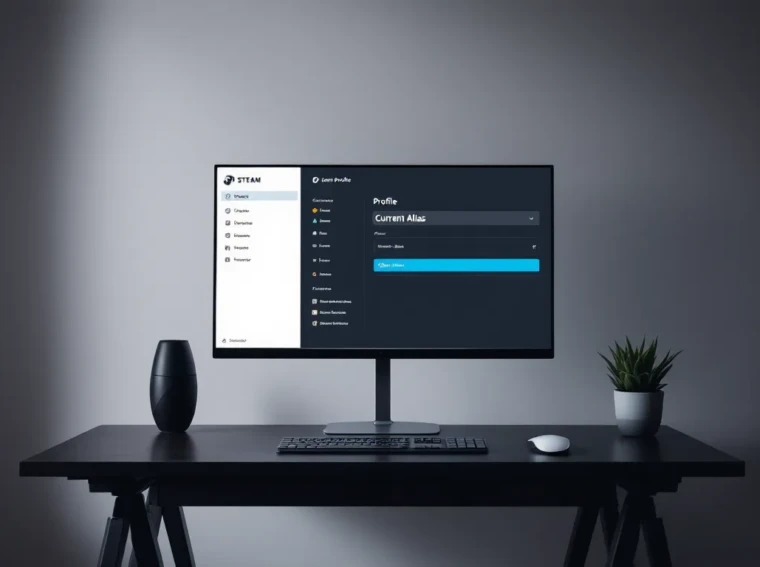
Your Steam profile is your identity in the gaming world. Whether you created an account years ago with a name you’ve since outgrown, rebranded for competitive play, or just want a fresh start, changing your Steam name is quick and straightforward. Unlike some platforms that lock you into a single identity, Steam gives players the flexibility to update their display name whenever they want, no permanent consequences. This guide walks through every method available, from the Steam client to mobile apps, plus what to watch out for before you make the switch.
Key Takeaways
- You can change your Steam name as often as you want with no cooldown or restrictions, and your friends list, achievements, and game library remain completely intact.
- To change your Steam name, open your profile via the Steam client or website, locate the ‘Current Alias’ field, enter your new name (up to 32 characters), and save—the change appears within seconds.
- Steam supports Unicode characters and emojis in display names, but names with profanity, hate speech, or obvious impersonation attempts may be rejected by the content filter.
- Avoid numbering, outdated slang, and personal identifying information when choosing a new Steam name; instead, pick something memorable and distinctive that reflects your gaming identity.
- Mobile players can rename their accounts through the official Steam app on iOS and Android using the same process as desktop, though the web browser option is available as a backup if UI issues arise.
- If your name change fails or doesn’t appear, restart the Steam client or app, try the web method instead, or contact Steam Support—most common issues resolve within seconds to minutes.
Why You Might Want To Change Your Steam Name
People change their Steam names for all sorts of reasons, and understanding your motivation can help you pick a name you’ll actually stick with.
Maybe you’re a casual player looking to rebrand before jumping into competitive ranked play. Esports enthusiasts often update their names when they join a new team or org, visibility and consistency across platforms matter when you’re grinding for sponsorships. Others simply grew out of the “xXNoobSlayer420Xx” phase and want something that won’t embarrass them during Twitch streams.
You might also be changing your name for safety or privacy reasons. If you used personal information in your original handle or want to distance yourself from an old account, a name change is painless. Some players rotate names seasonally or based on their current gaming focus, a “ValorantGrind” tag during competitive seasons, then something broader during off-season relaxation.
Content creators frequently rebrand their Steam names to match their streaming handles across YouTube, Twitch, and Discord. Consistency in your gaming identity makes it easier for community members to find and follow you. And let’s be honest: sometimes a name just stops fitting. You’re not the same player you were five years ago, and your profile should reflect that.
Things To Know Before Changing Your Steam Name
Before you jump into renaming, understand what changes and what doesn’t when you update your Steam name.
First, the good news: changing your display name is completely free and can be done as many times as you want. There’s no cooldown period, no restriction on frequency. You could change it daily if you wanted (though your friends would get confused). Your friends list, achievements, game library, and account history all stay intact. You don’t lose access to any games or DLC.
But, your Steam ID (the unique numerical identifier) never changes. This is what games use behind the scenes to track your progress. Your profile URL, the vanity name that appears in your profile link, is separate from your display name and has its own rules.
If you’re planning a name change because you’ve been locked out of your account or think your profile has been compromised, handle that first by securing your account through Steam’s account recovery process. Don’t just rename and hope the problem goes away.
Important Limitations And Restrictions
Steam does have some guardrails, even if they’re light:
- Character limits: Your display name can be up to 32 characters long. That includes spaces, so “The Tactical Keyboard Warrior” will max you out at 32 chars exactly.
- Special characters: Most Unicode characters are allowed, including emojis. Want a name with Chinese characters, Arabic script, or Unicode symbols? Steam supports it. But, profanity, hate speech, and obvious impersonation of famous people or other players are against the rules and can result in penalties.
- Account restrictions: If your account has a VAC (Valve Anti-Cheat) ban, trade ban, or community ban, you may face restrictions on name visibility or other aspects of your profile, but the actual name change function should still work.
- Timing limits on profile URL changes: If you own a vanity URL (custom profile name), you can only change it once every 30 days. This is separate from your display name, but worth knowing if you want to align both.
If Steam detects a name as violating community guidelines (offensive content, impersonation, etc.), the system may revert it or require you to choose another.
How To Change Your Steam Name On PC
The process differs slightly depending on whether you use the Steam client or the web interface, but both are equally simple. Pick the method that feels most intuitive to you.
Method 1: Changing Your Display Name Via Steam Client
This is the most straightforward approach for most players:
- Open Steam on your PC and log in to your account.
- Click your profile name in the top-right corner of the window (or click “View Profile” if you see that option).
- Look for the Edit Profile button, usually located near your profile name or avatar area.
- In your profile settings, find the Current Alias field (this is your display name).
- Click in that field and clear your current name completely.
- Type in your new name (up to 32 characters).
- Click Save Changes at the bottom of the page.
You’ll see a confirmation message, and your new name should update across your profile and in friends’ lists within a few seconds. If you’re logged into Steam on multiple devices, you may need to refresh those sessions to see the updated name everywhere.
Method 2: Changing Your Name Through The Steam Website
If the client method doesn’t work or you prefer the browser:
- Go to steamcommunity.com in your web browser and log in.
- Click on your profile name in the top-right corner and select View Profile.
- Click the Edit Profile link (usually on the right side of your profile).
- Scroll to the “Current Alias” section, this field holds your display name.
- Clear the existing text and enter your new name.
- Scroll down and click “Save Changes”.
The web method is often faster if you’re already browsing Steam’s community pages. Plus, if you’re troubleshooting a client glitch, the website version bypasses any potential sync issues.
How To Change Your Steam Name On Mobile
Mobile players can rename their accounts through the official Steam app on iOS and Android, though the process is slightly more limited than the desktop version.
Using The Steam Mobile App
Here’s how to update your name from your phone:
- Open the Steam mobile app on your iOS or Android device.
- Log in if you’re not already (tap the account icon at the bottom).
- Tap on your profile name or avatar to open your profile.
- Look for an “Edit Profile” or “Account Settings” option (typically three dots or a settings icon).
- Find the “Current Alias” or “Display Name” field.
- Delete your old name and type the new one.
- Tap “Save” or “Confirm”.
The mobile app syncs with the desktop version immediately, so your new name will appear everywhere within seconds. One note: some mobile devices have had occasional UI delays, so if your change doesn’t seem to register at first, close the app, wait a moment, and reopen it.
If you’re having trouble finding the edit option in the mobile app (UI changes between versions), you can always fall back to changing it through the website on your phone’s browser. The process is identical to the desktop web method, and mobile browsers handle Steam’s community pages smoothly.
Troubleshooting Common Name Change Issues
Even though Steam’s name-change system is reliable, occasional hiccups do happen. Here’s how to troubleshoot the most common problems.
Error Messages And Solutions
“This name is unavailable” or similar message: This usually means Steam’s content filter flagged your chosen name for profanity or policy violations. Try swapping out letters (replacing a “1” with an “i”, etc.) if you’re set on a particular style. If the name is genuinely innocuous and keeps getting rejected, try spaces or capitalization changes.
“Changes could not be saved”: This often signals a temporary sync issue between the client and Steam’s servers. Close the Steam client completely (don’t just minimize it), wait 30 seconds, and reopen it. Try making the change again. If it persists, try the web-based method instead.
Name changes not appearing in-game: Some games cache your old name locally. Restart the specific game, or restart your entire PC if the name still doesn’t sync. Your Steam profile will always show the correct name: it’s just a display lag in the game client.
Mobile app showing old name after change: Force close the Steam app and reopen it. If that doesn’t work, log out and log back in. Mobile apps sometimes need a fresh session to pull the latest profile data.
Account Restrictions And Verification
If you hit a roadblock during the name-change process and you’ve already tried the basic troubleshooting, your account might have restrictions:
- Limited accounts: New Steam accounts or accounts with limited activity can face restrictions. If you’ve never made a purchase, added funds, or unlocked the community, Steam might block certain profile changes. Adding at least $0.49 USD via Steam gift card or other payment method usually unlocks these features.
- Recent bans or flags: VAC bans, trade bans, or community reports don’t typically block name changes, but they can delay or restrict visibility of your profile. If you believe your account is incorrectly restricted, contact Steam Support.
- Duplicate names across services: Steam allows many users to have the same display name. Uniqueness isn’t enforced. If you think someone is impersonating you, report them through their profile, but this won’t prevent you from choosing a name you want.
For persistent issues that don’t resolve after restarting, clearing your browser cache (if using the web method), or trying both methods, reach out to Steam Support with a screenshot of the error message. They typically respond within 24-48 hours.
Best Practices For Choosing Your New Steam Name
Picking a good Steam name takes more thought than you might expect. You could change it frequently, but thoughtfully choosing something you’ll be happy with saves you the hassle.
Professionalism And Gaming Identity
If you stream, make content, or play competitively, your Steam name should align with your brand across other platforms. Consistency matters for discoverability. Your Twitch name, YouTube handle, Twitter/X handle, and Discord username don’t all have to be identical, but having a recognizable core name (like “xMaxProGamer” across platforms instead of “xMaxProGamer” on Twitch and “MaxThePro123” on Steam) makes it easier for viewers to follow you everywhere.
Avoid names with:
- Excessive numbers: “Pro_Player_2001_v3_XxX” screams 2008 energy. If you need numbers, keep them meaningful (birth year, favorite jersey number, clan ID).
- Outdated slang: “leet speak” (1337, xXx, 420, 69) feels dated. Gaming culture moves on.
- Offensive or edgy content: What’s funny to you and your friends might get you reported. Steam doesn’t ban casually, but targeted reports for hate speech or severe profanity do get reviewed.
- Real names and identifying info: Unless you’re a pro player who goes by your actual name (like “Faker” or “Pokimane”), avoid using your full name, address, phone number, or other PII.
A solid gaming name is memorable, relatively short (easier for teammates to call out), and reflects either your playstyle, personality, or gaming identity. “IceWalker”, “TacticalReload”, “GhostInTheWires”, these work because they’re distinctive without being cringe.
Avoiding Future Name Changes And Burnouts
Frankly, the easier it is to change your name, the more likely you’ll obsess over it. Here’s how to avoid constantly renaming yourself:
- Sleep on it: If you’re excited about a new name, live with the idea for a day or two before actually making the change. You’d be surprised how many names that feel brilliant at 2 AM don’t land the next morning.
- Test it with friends: Run your proposed name by your Discord crew or gaming buddies. They’ll be honest if it lands or feels off.
- Think long-term: Will this name embarrass you in five years? Will it still fit your gaming interests? Pick something with staying power.
- Consider your community: If you play competitive games, community recognition matters. Changing names too often (weekly or monthly) can confuse teammates and hurt your reputation. Pros stick with a name for seasons at a time.
Eventually, you can change your name whenever you want. But putting thought into it upfront means you’ll enjoy your identity longer and won’t feel the itch to rebrand constantly. According to veteran gamers and streamers, consistency builds recognition more effectively than constant reinvention. Think of your Steam name as a small part of your gaming legacy.
Frequently Asked Questions About Steam Name Changes
Can I change my Steam name back to something I used before?
Yes. There’s no restriction on reusing old names. If you had “ShadowNinja” three years ago, changed it to “TacticalGamer”, and now want “ShadowNinja” back, you can reclaim it instantly.
Does changing my Steam name affect my game saves or achievements?
No. Your achievements, playtime, and game progress are tied to your Steam ID, not your display name. Change your name a thousand times, your 500 hours in Elden Ring and all your unlocks stay right there.
Is there a cooldown between name changes?
Not for display names. You can change it as often as you want. But, if you own a custom profile URL (like steamcommunity.com/id/YourCustomName), you can only change that once every 30 days. Don’t confuse these two features, they’re independent.
Can I have special characters or emojis in my Steam name?
Yes. Steam supports Unicode, so you can use emojis, Chinese characters, Arabic script, Cyrillic, and most special symbols. Keep it tasteful, obvious hate symbols or spam characters may get flagged.
What if someone else is using the name I want?
Steam allows duplicate display names. Multiple users can be called “Gamer” or “Pro_Player” simultaneously. If you’re worried about impersonation (someone claiming to be you), that’s reportable, but it won’t stop you from picking the name you want.
Will my friends lose me if I change my name?
No. Your friends list is tied to your Steam ID, not your name. Change your name, and you’ll still appear in all your friends’ lists with your new name. Group chats, messages, and shared games are unaffected.
Can I change my name if my account is in trouble?
If you have a VAC ban, trade ban, or community report, you can usually still change your display name. But, the name change won’t lift any bans or restrictions. Address the underlying issue (account security, appeal a ban, etc.) through proper channels with Howtogeek’s guides on gaming setups if you need technical help.
How long does a name change take to appear everywhere?
Most of the time, it’s instant. Your profile updates within seconds, and friends see your new name immediately in their lists. Game clients may cache your old name for a few minutes, refreshing or restarting the game fixes that. Steam’s servers process changes nearly instantly: if you don’t see your new name after five minutes, try restarting the app or clearing your browser cache.
Can I have multiple Steam accounts with different names?
Yes. If you manage multiple accounts, each can have a different name. You can switch between accounts in the Steam client, and each will display its own chosen name. This is handy if you maintain a competitive account and a casual account, or want to keep gaming separate from streaming.
What if I forget my new name?
You can always view your current display name by going to your profile. It’s displayed prominently at the top. If you’ve given yourself an unusual Unicode name and can’t remember exactly how to spell it, your profile page will show the precise characters.
Conclusion
Changing your Steam name is one of the most frictionless identity updates in modern gaming. Unlike some platforms that impose cooldowns, fees, or identity locks, Steam gives you full freedom to rebrand whenever your gaming journey takes a new turn. Whether you’re rebranding for competitive play, refreshing your casual identity, or aligning with your streaming presence across platforms, the process takes less than a minute.
The key takeaway: pick a name you’re genuinely happy with, and you won’t feel the constant urge to tinker. A solid gaming identity, one that’s memorable, represents who you are as a player, and aligns with your community, becomes part of your reputation. Pros and content creators stick with their names for good reason: consistency builds recognition.
So whether you use the Steam client, the web interface, or the mobile app, you now know exactly how to make the change. And if you hit any snags, the troubleshooting steps above cover the vast majority of issues. Your new name is waiting. Make the change, and get back to what actually matters: the games themselves.