

If you’ve ever booted up your PC and watched Steam launch automatically without your permission, you know the frustration. That little window popping up uninvited not only burns through startup time but also drains system resources before you’ve even chosen what to play. Whether you’re running a gaming rig optimized for every frame, or just trying to speed up your work machine before a session, unwanted auto-launch is a common pain point. The good news? Stopping Steam from opening on startup is straightforward once you know where to look. This guide walks you through five proven methods to reclaim control of your startup process and keep your system running lean.
Key Takeaways
- Stop Steam from opening on startup using Windows Task Manager’s Startup tab—the fastest method that takes just a few clicks to disable the auto-launch behavior.
- Steam’s built-in Settings menu offers a reversible option to prevent auto-launch while keeping the application accessible for manual launching whenever you need it.
- Multiple methods exist to control Steam startup behavior, including Task Scheduler, the Startup folder, and third-party tools like Microsoft’s Autoruns or CCleaner for different technical preferences.
- Fully exit Steam after gaming by right-clicking its system tray icon and selecting ‘Exit Steam’ rather than minimizing, ensuring no background processes consume system resources.
- Disabling Steam at startup is especially beneficial for competitive gamers and users who share their PC for work, school, or other tasks, freeing up RAM and improving boot performance.
- All methods for stopping Steam from launching on startup are completely reversible, allowing you to re-enable auto-launch anytime through the same tools or settings.
Why Does Steam Launch Automatically On Startup?
Steam enables auto-launch by default as a convenience feature. The platform wants to be ready the moment you sit down to game, preloading the client so you’re just one click away from your library. For some players, especially those who game daily and want instant access, this is perfect. For others, it’s a system resource hog that serves no purpose.
When you install Steam, it automatically registers itself in your Windows startup processes. This happens silently, without asking permission. The client launches in the background, consuming RAM and disk I/O even if you never open it. On older systems or lean gaming laptops, this can noticeably slow your boot time and impact early-session performance. If you’re one of those players who boots up for work or other tasks before gaming, or if you prefer to launch games through other methods, disabling this behavior makes complete sense.
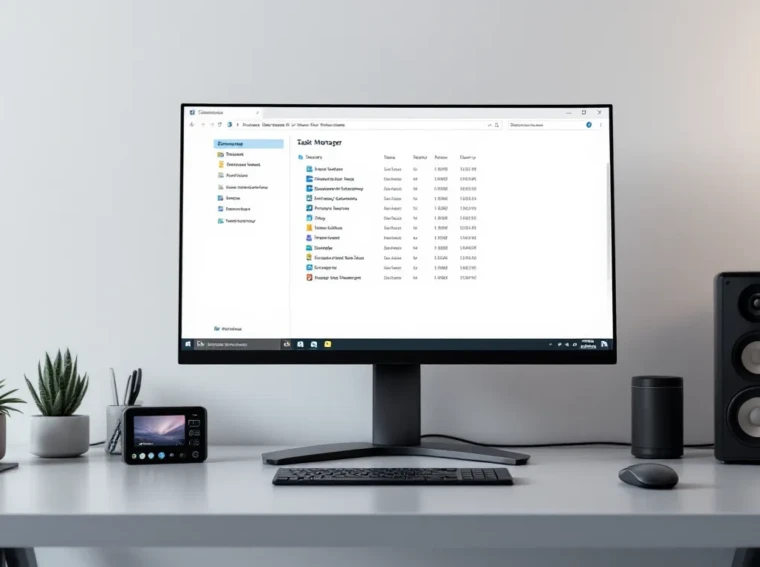
Method 1: Disable Steam Launch In Windows Startup Settings
This is the simplest and most direct method, especially on Windows 10 and Windows 11. You don’t need to edit registry files or dig through obscure folders, Windows gives you a straightforward interface to manage what launches at boot.
Step-By-Step Instructions
- Open Task Manager by pressing
Ctrl + Shift + Escor right-clicking the taskbar and selecting “Task Manager.” - Click the “Startup” tab at the top of the window. This tab displays all applications configured to run on startup.
- Find Steam in the list. You’ll see the Steam entry with a status column showing “Enabled” or “Disabled.”
- Right-click on Steam and select “Disable.” The status will immediately change to “Disabled.”
- Restart your PC to confirm the change takes effect.
That’s it. Steam won’t launch on your next startup. The beauty of this method is reversibility, if you change your mind later, you can re-enable it through the same Task Manager window.
Troubleshooting Common Issues
If Steam still launches after disabling it in Task Manager, a few things might be happening:
Steam isn’t showing in the Startup tab: If you don’t see Steam listed, it may already be disabled, or Windows isn’t recognizing it. Check that you’re in the correct tab and scroll through the full list.
You don’t have permission to disable it: On systems with parental controls or administrator restrictions, you might need to provide credentials or adjust your user account privileges. Try running Task Manager as administrator by right-clicking the Task Manager icon and selecting “Run as administrator.”
Steam relaunches after you restart: This can happen if you have multiple Steam accounts or if third-party software is re-enabling the startup entry. Check the Startup tab again to confirm it’s still disabled, and verify no other programs are forcing Steam to launch.
Method 2: Use Steam’s Built-In Settings To Prevent Auto-Launch
If you want to keep Steam accessible and running in the background, just not at startup, Steam’s own settings offer a middle ground. This method doesn’t prevent the application from launching entirely: instead, it separates the Steam client’s activation from your PC’s boot process.
Accessing Steam Launch Options
First, you need to open Steam and navigate to its settings. Launch the Steam application (or use an existing running instance), and look at the top-left corner. Click “Steam” in the menu bar, then select “Settings” from the dropdown. You’ll see the Settings window open with several tabs on the left side.
Configuring Startup Behavior
Within the Settings window, click on the Interface tab. Scroll down until you find the option labeled “Run Steam when my computer starts.” This is your target. Uncheck this box. If you also see an option to “Use Desktop Theater Mode when launching a controller configuration” or similar, leave those as they are, they don’t affect startup behavior.
Once unchecked, click “OK” at the bottom right to save your changes. Steam won’t launch automatically on your next boot. You’ll still be able to launch it manually whenever you want.
This method is gentler than using Task Manager because it respects Steam’s own preferences and avoids potential conflicts with updates or account features that might expect the client to be running.
Method 3: Disable Steam Through Task Scheduler
Windows Task Scheduler is a more granular control panel than Task Manager’s Startup tab. It lets you see exactly what Steam is doing and when. This method is useful if you want to keep detailed control or if you suspect multiple scheduled tasks are launching Steam.
Finding And Removing Steam Tasks
- Open Task Scheduler by pressing
Windows key + R, typingtaskschd.msc, and pressing Enter. Alternatively, search “Task Scheduler” in the Windows search bar. - Navigate to Task Scheduler Library > Microsoft > Windows in the folder tree on the left. (Note: Some Steam tasks may be in the root Library folder instead.)
- Look for entries labeled “Steam” or “SteamLaunch.” Check both the main Library folder and any subfolders.
- Right-click on any Steam-related task and select “Delete” to remove it. Confirm the deletion when prompted.
- Repeat for all Steam entries you find.
- Restart your PC to verify the change.
This method requires a bit more legwork than the others, but it’s thorough. If Steam somehow re-registers itself in Task Scheduler (which can happen after updates), you’ll need to delete the entries again. Unlike Method 1, Task Scheduler changes can occasionally revert after major Windows updates, so you might need to revisit this periodically.
For detailed steps and screenshots, gaming setup tutorials can provide visual walkthroughs if you get stuck navigating Task Scheduler.
Method 4: Remove Steam From Startup Folder
Windows maintains a dedicated Startup folder where shortcuts to programs are placed. Some applications, including Steam, add shortcuts here to trigger on boot. Manually removing Steam from this folder prevents it from launching, and it’s completely safe, you’re just deleting a shortcut, not the application itself.
Open File Explorer and navigate to C:Users[YourUsername]AppDataRoamingMicrosoftWindowsStart MenuProgramsStartup. Replace [YourUsername] with your actual Windows username. If you don’t see the AppData folder, you’ll need to enable hidden files. Click the “View” tab in File Explorer, then check “Hidden items.”
Once in the Startup folder, look for any shortcuts related to Steam. They’ll typically be labeled “Steam” or similar. If you find them, delete them. You can also check the system-wide startup folder at C:ProgramDataMicrosoftWindowsStart MenuProgramsStartUp (note the capitalization), though Steam typically uses the user-specific folder.
After deleting the shortcut, restart your PC. Steam won’t launch at startup. If you ever want to re-enable this behavior, you can create a shortcut to C:Program Files (x86)Steamsteam.exe and place it back in the Startup folder, but that’s rarely necessary since the built-in Steam settings (Method 2) provide an easier way to control this.
Method 5: Use Third-Party Startup Manager Tools
If you prefer a graphical interface that’s friendlier than Task Manager or Task Scheduler, third-party startup managers offer polished alternatives. These tools consolidate startup control, let you see descriptions of what each program does, and often include disable/enable toggles without requiring technical knowledge.
When choosing a startup manager, prioritize lightweight, trusted options. Avoid bloated “PC optimizer” tools that claim to fix everything, many are resource hogs themselves. Look for simple, dedicated startup managers with minimal feature creep.
Most quality startup managers present a clean list of startup programs, show which ones are essential for Windows, and let you disable items with a single click. Many also let you schedule when programs launch, create startup profiles for different scenarios, or temporarily disable groups of programs.
Recommended Startup Managers For Gamers
Autoruns (by Microsoft)
This is a lightweight utility developed by Microsoft itself. It’s completely free and shows you every way a program can launch on your system, startup folders, registry entries, scheduled tasks, services, and more. It’s not the most beginner-friendly interface, but it’s the most thorough and trustworthy. Download it from Microsoft’s Sysinternals website.
CCleaner (Free Version)
CCleaner’s startup manager is integrated into the free version and provides a simple list view. You can enable or disable startup programs with a checkbox. While CCleaner offers paid versions with more features, the free version’s startup manager is perfectly adequate for disabling Steam.
Wise StartUp Manager
This tool focuses solely on startup control and is designed for simplicity. It categorizes programs as “Windows,” “Third-party,” or “Unknown” and shows descriptions for each entry. It’s lightweight and doesn’t require installation, making it portable.
When using any third-party tool, make sure you’re downloading from the official website, not a third-party download site. Malware distributors sometimes create fake download pages for legitimate tools.
How To Keep Steam From Running In The Background
Disabling auto-launch solves the startup problem, but Steam might still run in the background if you’ve previously launched it and minimized it rather than fully closing it. If you want to ensure Steam isn’t consuming resources at all, you’ll need to close it properly.
When you’re done gaming, don’t just close the Steam window, exit the application entirely. Look at the system tray (bottom-right corner of your taskbar) and right-click the Steam icon. Select “Exit Steam” instead of just closing the window. This ensures the process ends completely.
You can verify Steam has fully closed by opening Task Manager and checking the Processes tab. Search for “steam.exe” or “steamwebhelper.exe.” If neither appears, Steam is completely shut down. If you see any Steam-related processes still running, right-click them and select “End Task.”
For competitive gamers playing titles with tight frame-time budgets like Counter-Strike 2, Valorant, or Apex Legends, running unnecessary background processes is a real performance hit. Every megabyte of RAM and CPU cycle counts when you’re chasing millisecond-level advantages.
Memory And Performance Optimization Tips
Disable Steam’s bandwidth limiter if you’re not using it. Go to Steam > Settings > Downloads and make sure “Limit bandwidth to” is unchecked unless you have a specific reason to cap your network usage.
Turn off the Steam Overlay for games where it’s not needed. The overlay can introduce input lag. Go to Settings > In-Game and uncheck “Enable the Steam Overlay while in-game.”
Disable cloud saves if you’re not using them. Cloud synchronization runs in the background even after you close a game. Go to Settings > Cloud and uncheck “Enable Steam Cloud synchronization for applications which support it” if you don’t need this feature.
Close background apps that wake Steam. Some applications or browser extensions trigger Steam to launch when you click a Steam store link. Be selective about what programs auto-launch alongside Windows. PC gaming performance analysis often breaks down which background processes impact frame rates, so checking those resources can help you identify culprits.
When You Might Want Steam To Auto-Launch
For all the reasons to disable Steam’s auto-launch, there are legitimate scenarios where you might want to keep it enabled.
Daily gamers benefit from having Steam ready. If you boot your PC specifically to play and don’t use it for work or other tasks, auto-launch saves you a click and gets you into your library faster. The startup time penalty is negligible if you’re planning to game anyway.
Content creators and streamers often benefit from auto-launch. If you stream or record gameplay regularly, having Steam preloaded means faster switching between games, cleaner scene transitions, and no awkward waiting for the client to launch on stream.
Households with shared PCs might prefer it enabled. If multiple people use the same gaming machine, having Steam ready means whoever’s playing doesn’t have to wait to access their library. The resource cost is offset by convenience.
Players using Steam Link or Remote Play rely on Steam running. These features work better when Steam is always running in the background. If you’re playing on a different device and streaming from a host PC, keeping Steam enabled on the host is practical.
Your choice depends on your usage pattern. If you game daily and your PC is dedicated to gaming, keep it enabled. If you use your PC for work, school, or other tasks and only occasionally play, disable it. The methods in this guide are all reversible, so you can always change your mind.
For context on broader PC gaming software guides, understanding startup behavior is just one piece of optimizing your rig for both performance and convenience.
Conclusion
Stopping Steam from opening on startup boils down to choosing the method that fits your comfort level. Task Manager’s Startup tab is fastest for most users. Steam’s built-in settings are the safest if you want to keep the option reversible without touching system settings. Task Scheduler offers precision if you suspect multiple launch points. The Startup folder method is old-school but reliable. Third-party tools provide a friendlier interface if you’re managing multiple startup programs.
Whichever path you choose, you’ll reclaim boot time and free up system resources. For competitive gamers, this means cleaner frame timing. For everyday users, it means a snappier PC. The key is understanding why Steam launches automatically in the first place, once you know that, disabling it becomes straightforward. Start with Method 1 if you want speed, or Method 2 if you prefer Steam’s own interface. Both work equally well, and you can always switch approaches if one doesn’t suit your workflow.