

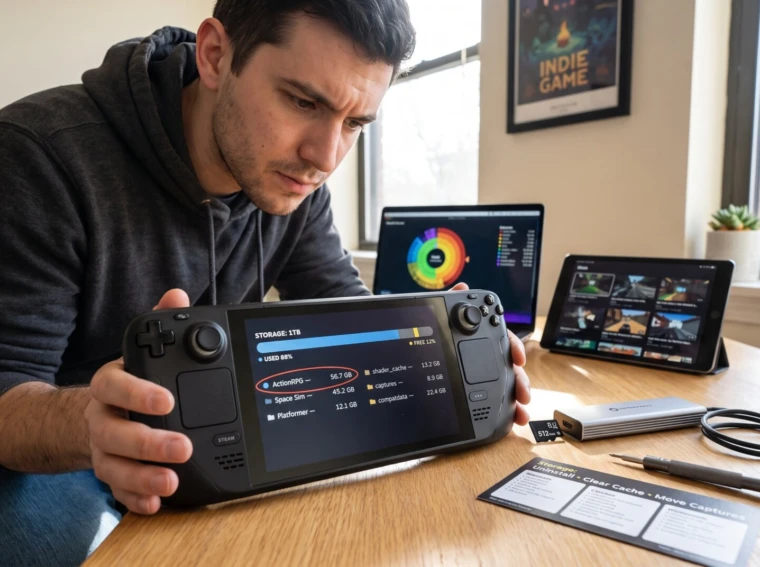
How to Manage Storage on a Portable Gaming Device matters when a handful of 64 GB installs can ruin a weekend. ThePortableGamer readers face tight SSDs, bulky game updates, and capture folders that balloon overnight. This guide gives clear, prioritized steps: check usage, remove exact space hogs, move or archive safely, and expand storage with supported hardware. It focuses on practical actions a gamer can do in 10–60 minutes and explains when to upgrade hardware versus tidy files.
Key Takeaways
- Managing storage on a portable gaming device is crucial for maintaining performance and preventing issues like slow load times and failed updates.
- Regularly checking device storage and identifying space hogs such as large game installs, shader caches, and capture folders helps keep storage optimized.
- Uninstall unused games, clear temporary caches, and delete old media files to quickly free up significant storage space.
- Expanding storage using high-capacity microSD cards is an efficient and affordable way to add game space without internal hardware changes.
- Organizing games and files with a clear folder structure across internal and external storage prevents accidental installations and simplifies future cleanups.
- Upgrading the internal SSD can boost performance but should be done carefully with proper guides to avoid warranty loss and ensure compatibility.
Why Storage Management Matters For Portable Gamers
Free space is not a nice-to-have, it is a performance requirement. Devices usually need a 10–15% free buffer for shader caches, system updates, and swap files: without it installs fail or stuttering appears during play. A single modern AAA title can be 30–80 GB, and compatibility data for emulation or Proton can add tens of GB more. That means a 256 GB handheld can feel full after just three big games plus captures.
Practical impact: slow load screens, longer suspend/resume times, failed updates, and corrupted temporary files. For an esports player swapping devices between practice sessions, even a 5 GB shader cache spike can disrupt a scheduled scrim. ThePortableGamer’s audience benefits from routine storage checks so games remain available and performance is steady.
Gamers who want broader context can follow a deeper portable-gaming primer in the site’s guides overview, which ties device tips into travel and workflow advice.
How To Check Your Device Storage And Identify Space Hogs
First: open the system storage view and read the numbers. That quick fact shows used vs free and per-app breakdowns on devices like Steam Deck and Switch. On SteamOS, the storage page lists per-game sizes and flat cache values: on Switch, the data menu shows software versus save data.
Next: find folder-level offenders. Use a disk analyzer app or the console’s file manager to locate large folders such as shader_cache, compatdata, and capture folders. For example, a shader cache folder of 12–18 GB on a Linux handheld often grows after a major update: identifying it lets a user delete or prune safely.
If cloud or streamed play factors into storage choices, remember the trade-offs: local installs use space but streamlined cloud sessions eliminate game installs. For reading on cloud tradeoffs and how storage interacts with streaming, see the article on cloud gaming tradeoffs.
Quick Cleanup Steps To Free Space Now
Start with three direct moves: uninstall unused titles, clear temporary caches, and delete old media. These actions deliver immediate, measurable gains.
Uninstall games not played in the past six months. Removing one 50 GB game frees the same room as adding a small microSD, and it takes under five minutes. Next, clear download and update caches via the system settings: caches often hide several gigabytes after patch day. Finally, go to captures and remove unneeded screenshots or 4K clips: a 60-second 4K clip can be 300–500 MB.
For structured guidance on what to remove and when, gamers will find step-by-step prep techniques in the site’s travel-ready checklist for offline play in preparing games for trips.
Upgrade, Expand, And Organize Your Storage Options
Upgrading storage is a long-term solution. Fact: adding a high-capacity microSD is the fastest and safest expansion for most handhelds. A 512 GB UHS‑I U3 card adds space for dozens of indie and many AAA titles while costing far less than an internal SSD swap.
Where supported, replacing the internal SSD yields the biggest performance gain. Users who want step-by-step disassembly and part choices often consult hardware guides: for example, a clear walkthrough on upgrading a Steam Deck SSD explains compatible NVMe sizes and torque steps and helps avoid voiding warranties SSD upgrade guide.
External drives are useful for archival libraries. Install light, single-player games to slower external media and reserve the internal drive for competitive titles. Finally, set a simple folder scheme: INTERNAL/PLAY, EXTERNAL/ARCHIVE, and CAPTURES/EXTERNAL. This small discipline reduces accidental installs to the wrong drive and makes future cleanups quick. For broader device optimization strategies, including picks for 2026 setups, consult the guide to most portable monitor setups.
Conclusion
Smart storage management keeps games playable and devices responsive. Regular checks, targeted deletions, safe archiving, and sensible expansions preserve a portable gamer’s library without surprise failures. ThePortableGamer’s collection of guides and device advice helps players choose the right storage path and avoid common mistakes when traveling or competing.